Knowledge Base Automation: What to Automate (and What Not To)

Knowledge Base Automation: What to Automate (and What Not To)
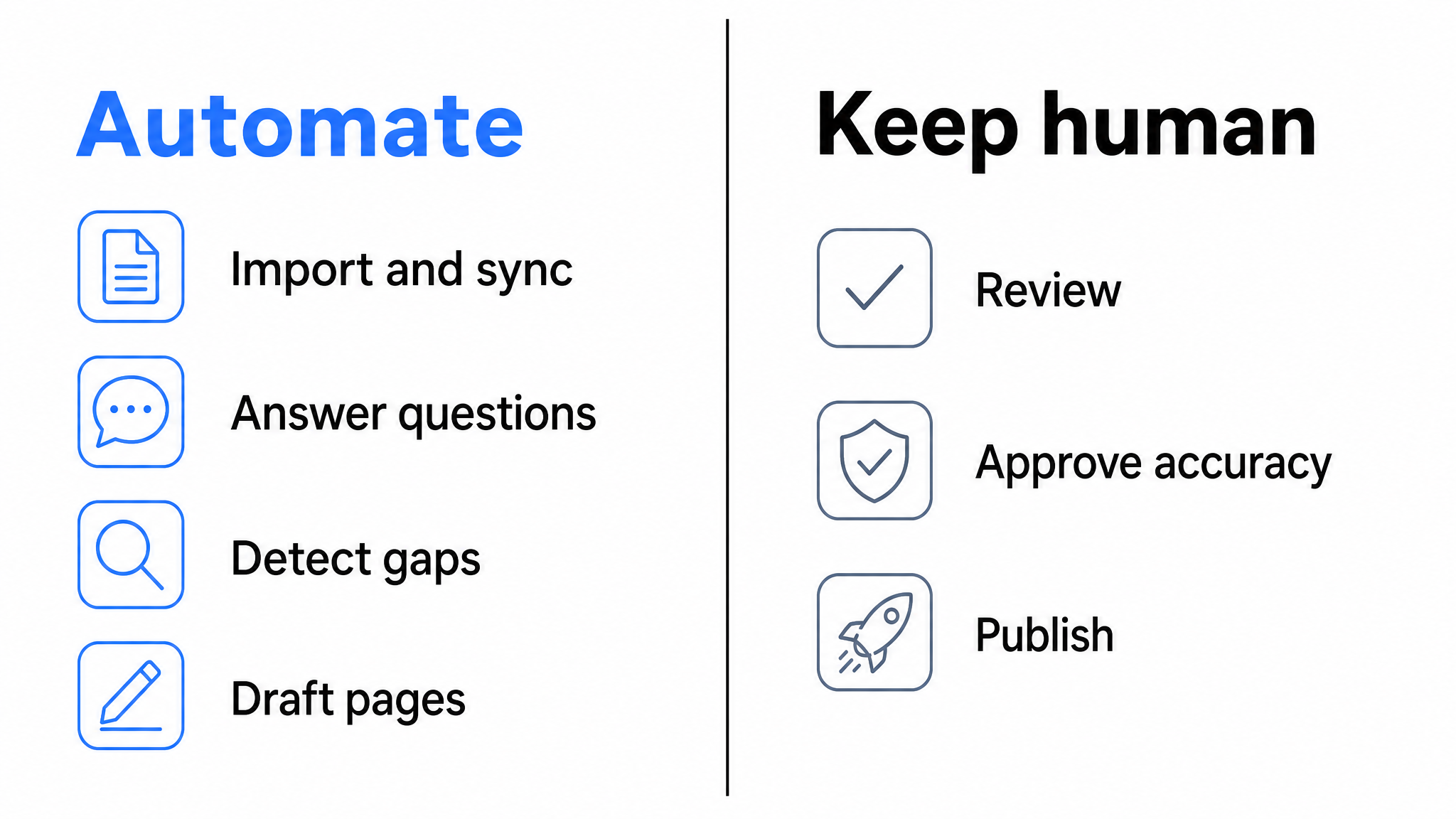
Knowledge base automation means letting software handle the repetitive mechanics of running a knowledge base, importing and syncing content, answering routine questions, detecting gaps, and drafting updates, so humans only handle the part that actually needs judgment: deciding what is true and publishing it.
Most teams under-automate their knowledge base and over-automate their expectations. They manually copy content between tools (which automation does better), while hoping AI will somehow write accurate documentation from nothing (which it cannot). This guide lays out the five automations that reliably pay off, the workflow that connects them, and the two things you should keep manual.
The Manual Knowledge Base Tax
Run a knowledge base by hand and the recurring costs look like this: someone copies updated content from Notion or Google Docs into the help center, reformats it, and inevitably lets the two copies drift. Someone reads support tickets to guess what articles are missing. Someone answers the same fifteen questions in chat because users won't dig through categories. Someone means to audit stale pages each quarter and doesn't.
None of this work is skilled judgment. It's transport, triage, and repetition, exactly what software is for. The judgment work (is this procedure correct? should we publish this?) is a small fraction of the total effort, but it's buried under the mechanical work, so it gets done badly too.
Automation 1: Content Import and Sync
The highest-leverage automation is also the least glamorous: stop manually moving content between systems.
Your source material already exists in Notion pages, Google Docs, Confluence spaces, Word files, and PDFs. A knowledge base platform should ingest these directly, preserve structure, and, crucially, support re-sync, so when the source document changes, the published article can be updated without copy-paste. One-time import gets you launched; sync keeps you honest. Without it, you've created a second copy that starts going stale the day you import it, the failure mode we cover in depth in how to keep a knowledge base up to date.
Practical checklist for this layer:
- Direct import connectors for the tools your team actually writes in (for Dewstack: Notion, Google Docs, Confluence, GitHub, Word, PDF and more)
- A defined source of truth per document, so sync direction is unambiguous
- Version history on the knowledge base side, so a bad sync is reversible
Note the wording: these are import connectors. They pull existing documents in. That is a different mechanism from connecting an AI assistant to your workspace, which we get to in Automation 4. Teams conflate the two and then expect their Notion connector to write new articles. It does not, and it should not.
Automation 2: AI Answering
The second automation moves the answering work from your team to the system. An AI assistant trained on your documentation answers user questions directly, in natural language, with citations back to the source articles, 24/7, on your docs site and embedded in your product via a widget.
This is the automation users notice. Instead of searching, opening three articles, and skimming for the relevant paragraph, they ask "can I change my billing date?" and get the answer plus a link to verify it. Every routine question answered this way is a ticket that never gets filed and an interruption a teammate never fields.
Two requirements make this safe rather than risky. First, grounding: the assistant must answer only from your content and decline when your docs don't cover the question, not improvise from general AI training data. Second, citations: every answer should link to its sources so users can verify and admins can audit. Both are covered in detail in our guide to AI answers from your docs. When evaluating platforms, also check answer quotas on the pricing tiers so the economics stay predictable as usage grows.
Automation 3: Gap Detection
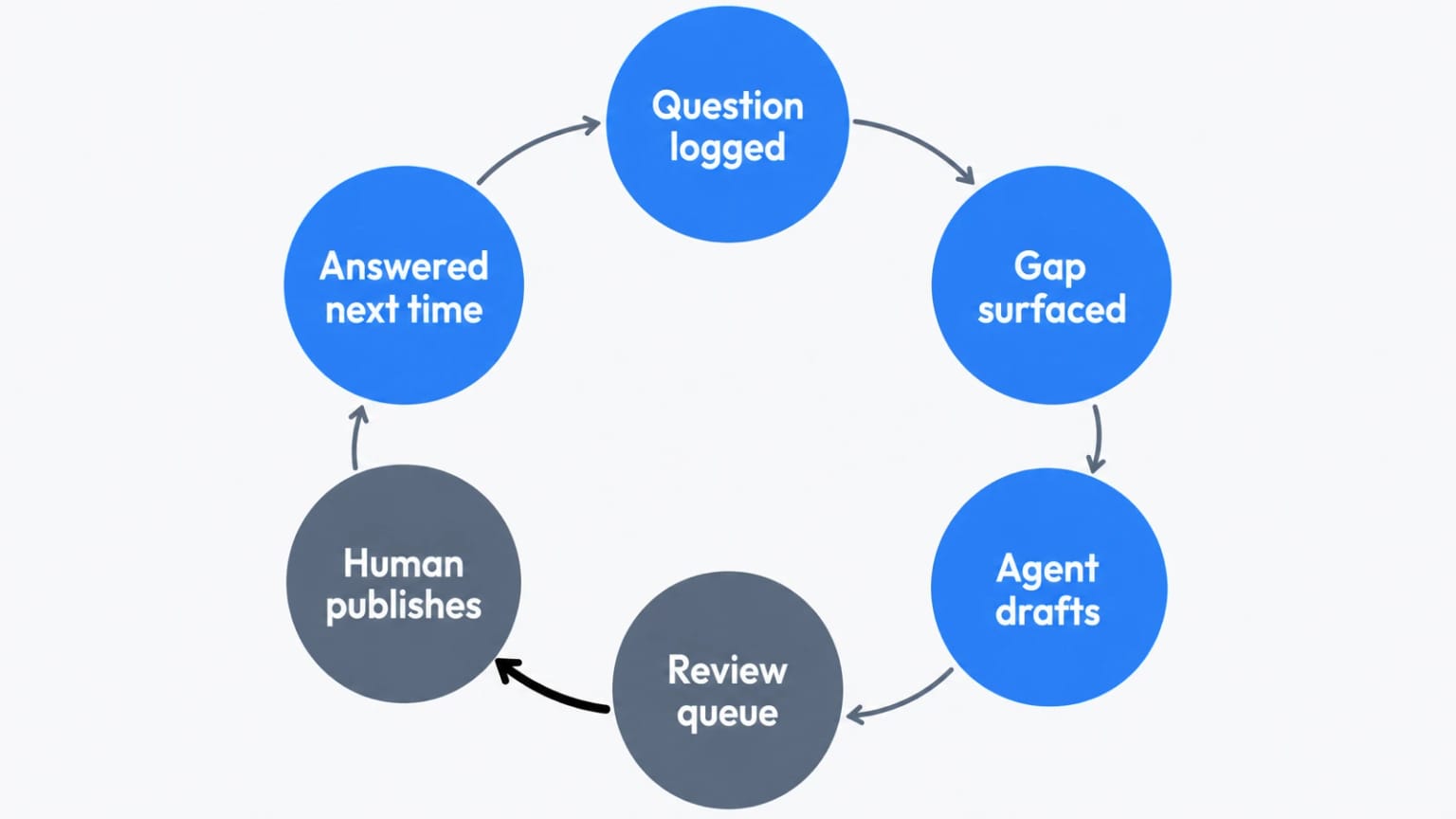
Here is where automation compounds: the questions your AI assistant couldn't answer are the most valuable data your documentation program has ever had.
Every declined or poorly-answered question is a user telling you, in their own words, what content is missing. Conversation logs and zero-result search reports turn content planning from guesswork ("what should we write next quarter?") into a ranked queue ("41 people asked about SSO configuration this month and we have nothing").
Two signals matter and they answer different questions:
- Content gaps are what readers searched for and did not find, plus questions the assistant could not answer, with counts attached. This tells you what to write that does not exist yet.
- Stale pages are published pages untouched past a threshold you set. This tells you what already exists and has probably drifted out of date.
The first list grows your coverage. The second protects the coverage you already have. Most teams watch only the first and then wonder why their answer rate is high while their answers are wrong.
Historically the gap between "here is the ranked queue" and "here is a draft" was still a person opening an editor. That is the step that changed.
Automation 4: Agent Writing, Drafts Only
Dewstack's August 2026 release closes the loop: you connect an AI assistant to your workspace, and it reads the gap signals and writes drafts directly into the knowledge base. It cannot publish them. That is not a configuration choice you make, it is how the system is built.
Connecting takes one approval screen
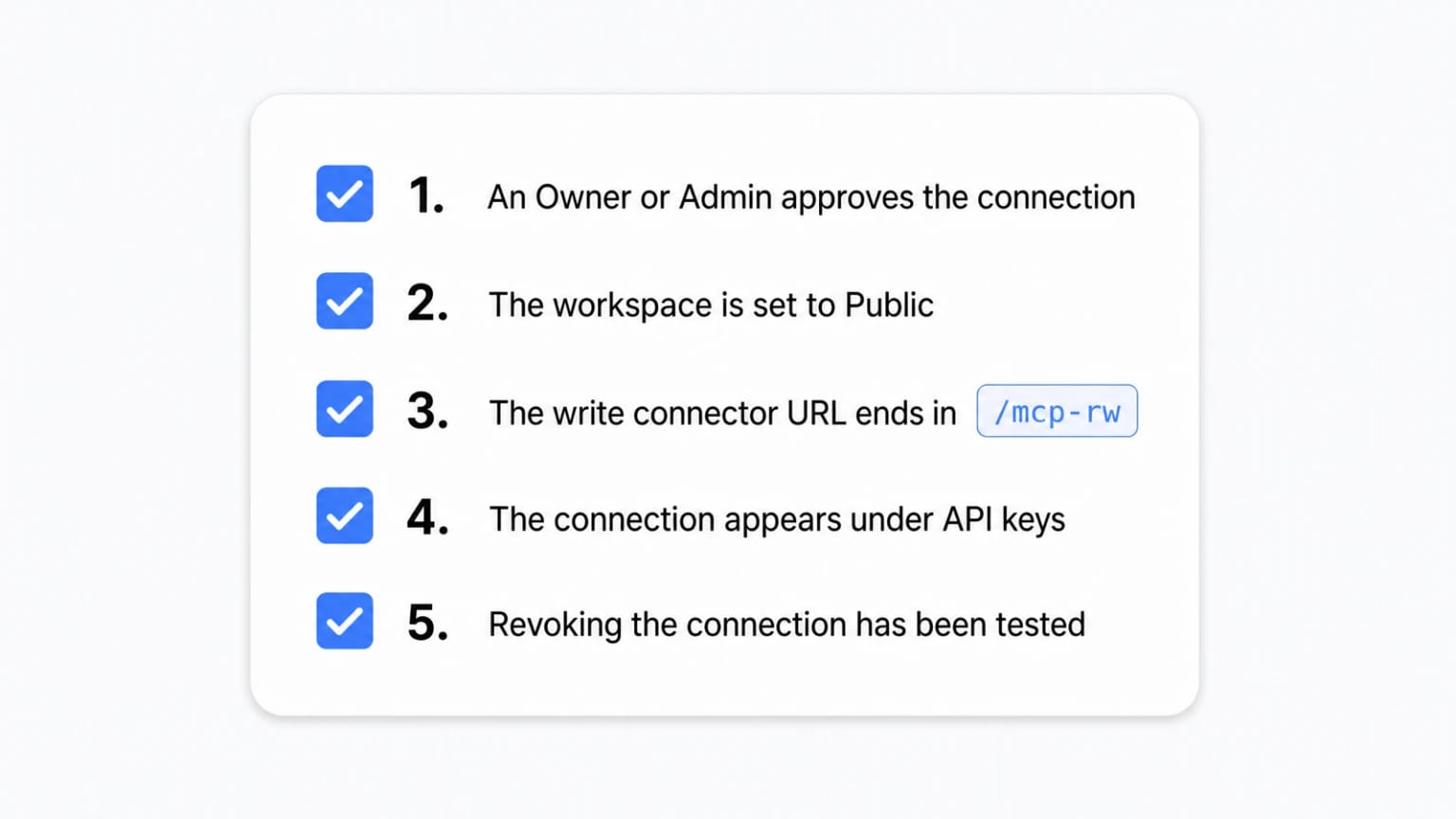
In Claude, open Settings, then Connectors, then Add custom connector. Paste your workspace's Write connector URL, the one ending in /mcp-rw. Sign in. Claude shows an approval screen that names the workspace you are about to grant access to, and you press Allow. There are no API keys to generate and no code to write. Only account Owners and Admins can approve a connection, so a contributor cannot quietly wire an agent into production content.
ChatGPT supports this as a developer mode connector only. OpenAI restricts write-capable connectors to developer mode, so ChatGPT's regular connector surface can read your docs but cannot write to them. If your team standardises on ChatGPT, plan for that qualifier rather than being surprised by it.
Coding agents work differently. Claude Code and Cursor authenticate with an API key scoped to Read and write, rather than the OAuth approval flow, because they run in a terminal and an editor rather than a chat product with a consent screen.
What the agent can actually do
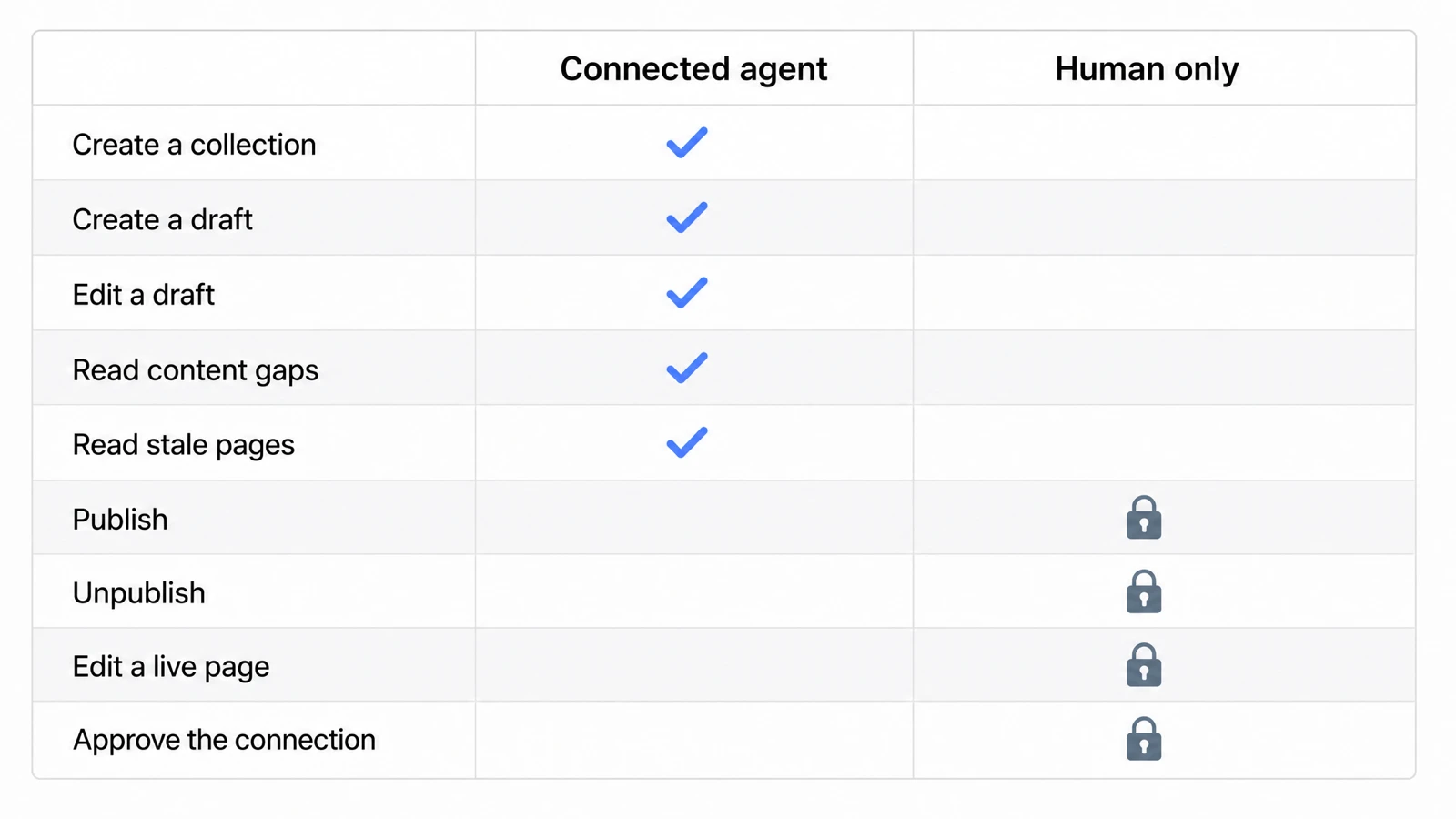
Three write tools and two signal tools, and it is worth being precise about each.
create_collectionmakes a new collection, so an agent asked to document a whole feature area can structure it rather than dumping ten loose pages.create_articlecreates a page as a draft. Not as a live page with a draft flag you could flip by accident. A draft.update_articleedits an existing draft. Before the edit lands, the previous version is written to Page History.list_content_gapsreturns what readers searched for and did not find, plus the questions the assistant could not answer, with counts.list_stale_pagesreturns published pages untouched past your threshold.
The pairing is what makes this useful rather than novel. The agent does not need you to describe the backlog, because it can read the backlog. You can ask it to look at this month's content gaps, pick the three highest-count clusters, and draft an article for each grounded in the related pages that already exist. What lands in your workspace is three drafts and a Page History entry, not three published articles.
Output quality is handled at the protocol level too. Agents receive Dewstack's docs dialect when they connect, so what comes back has callouts, numbered step blocks, tables, and video embeds rather than a wall of prose that a human then has to reformat into documentation.
The four rules that have no exceptions
- Drafts only. An agent cannot publish, cannot unpublish, and cannot touch a page that is live. If you want an agent to rework something already published, a human unpublishes it first. Ask otherwise and the agent is refused.
- History first. The previous version is saved to Page History before any change is applied. Nothing is overwritten without a restore point.
- Sanitised on the way in. Script handlers and unsafe embeds are stripped from anything an agent writes, so a prompt-injected instruction cannot smuggle executable content into your docs site.
- Visible and revocable. The connection appears under API keys alongside everything else with access. Revoking it disconnects the agent immediately.
Page History attributes agent edits to the connection's key name, so a reviewer sees an entry like "Claude connector - agent update" rather than an anonymous change, and one click restores the previous version. That attribution matters more than it sounds: when a reviewer is deciding how carefully to read a diff, knowing whether a human or an agent wrote it is the first thing they want.
Operational limits worth knowing before you plan around this
Each connection or key is capped at 500 writes per day. Write access requires the workspace to be Public, so a private staging workspace is not a target for agent writing. Every write and every refused write is recorded against the key, which means the audit trail includes the things the agent tried and was not allowed to do, not just what succeeded.
A worked example
Say your assistant logged 41 questions about SSO configuration this month and you have nothing published on it. The sequence looks like this:
- Ask the connected agent to list this month's content gaps. It returns the clusters with counts, and SSO is at the top.
- Ask it to draft an SSO configuration article, grounded in your existing authentication pages so terminology matches.
- It calls
create_collectionif there is no sensible home for the page, thencreate_article. The page exists as a draft. - Your identity engineer opens the draft, corrects the two things the agent inferred rather than knew, and publishes.
- Next month, the SSO cluster is gone from the gap list.
The agent removed the blank page and the formatting work. It did not remove the engineer, and at step four nothing was live yet, so a wrong claim about your SSO setup was never visible to a customer or repeatable by your assistant.
Automation 5: The Analytics Loop
The final layer measures whether the other four are working, automatically:
- Answer rate, the share of questions the assistant handled with a grounded answer, trending up
- Zero-result rate, searches and questions finding nothing, trending down
- Deflection, repetitive tickets on covered topics, trending down
- Article-level signals, where rising traffic with falling helpfulness ratings flags accuracy problems
The point is not a dashboard for its own sake. It's that the system, not a quarterly audit, tells you where attention is needed. Over time this feedback loop is what people mean when they call a system a self-learning knowledge base: usage data continuously reshapes the content.
What Not to Automate
Two lines are worth holding, and the agent-write design is what holding them looks like in a product rather than a policy document.
Final publish on customer-facing content. AI drafts; a human approves. An unreviewed error doesn't just mislead readers of one page, it becomes an answer your AI assistant repeats confidently to everyone who asks. Human-in-the-loop review is cheap insurance precisely because the drafting is already automated.
The useful thing about the drafts-only boundary is that it does not depend on anyone's discipline. A team under deadline pressure cannot decide to skip review this once, because there is no permission to grant and no toggle to flip. The agent has no publish capability at all. Guardrails that rely on process erode; guardrails that rely on the absence of a capability do not.
Deciding what's true. Automation can tell you an article is stale, draft a revision, and even flag contradictions between documents. It cannot know that legal changed the refund policy yesterday or that the workaround in paragraph three was retired. Source expertise stays human; automation just makes sure it's applied where it matters, when it matters.
This is also why the unpublish step exists. Reworking a live page is the highest-risk operation in a knowledge base, because the page is already being served and already being cited in AI answers. Requiring a person to take it out of circulation first turns an invisible edit into a deliberate decision.
Putting It Together
| Layer | What automates | What stays human |
|---|---|---|
| Ingestion | Import + sync from Notion/GDocs/Confluence/PDF | Choosing sources of truth |
| Answering | Grounded AI answers with citations, embedded widget | Setting scope and tone |
| Gap detection | Content gaps and stale pages, ranked with counts | Prioritizing what to write |
| Drafting | Agent-written drafts straight into the workspace | Review and publish, always |
| Measurement | Answer rate, deflection, freshness signals | Acting on the signals |
Start with ingestion, which is roughly a day of setup. Enable AI answering, which is an afternoon. Run the gap-detection loop manually for two or three weeks so you learn what your readers actually ask before you point an agent at it. Then connect the agent, cap its first job to a handful of drafts, and review those drafts closely enough to calibrate how much editing they need. After that the loop drives itself, and the knowledge base stops being a project you push and becomes a system that tells you what it needs.

For the full context on how these pieces fit into an AI-powered documentation stack, retrieval, embeddings, grounding, and build versus buy, see our complete guide to AI knowledge bases. To run the loop on your own content, Dewstack bundles all five layers, and you can try it free.
Ready to Elevate Your Documentation?
Try Dewstack free for 7 days. Create AI-powered documentation that answers questions instantly.
Start a free trialANSWERS TO
Frequently Asked Questions
Here are some common questions that might provide the information you're seeking.
Related Blogs
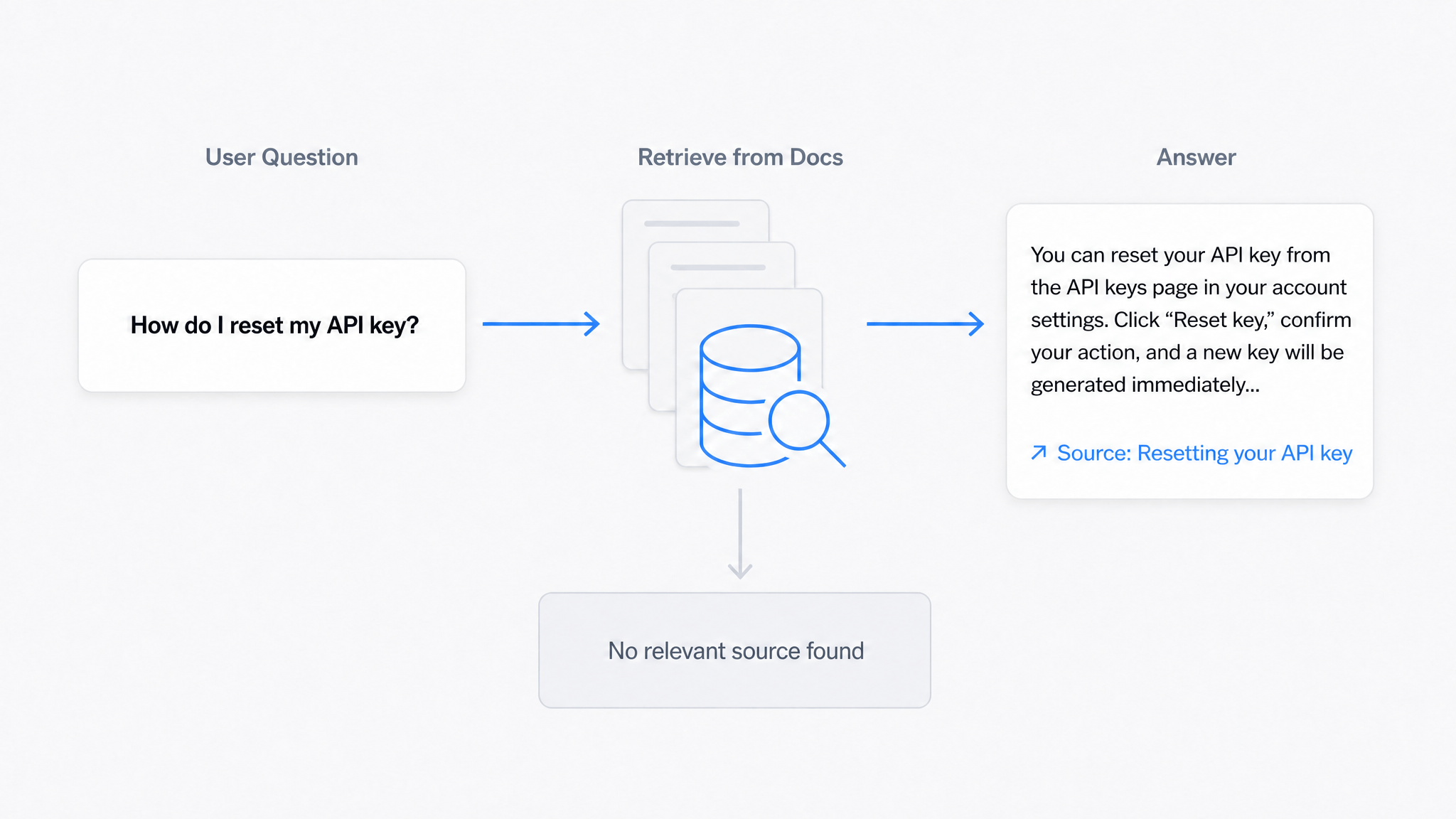
AI Answers From Your Docs: Grounded Answers, Citations & Hallucination Control
How an AI chatbot for technical documentation gives grounded answers with source citations, controls hallucinations, and turns unanswered questions into drafted pages.
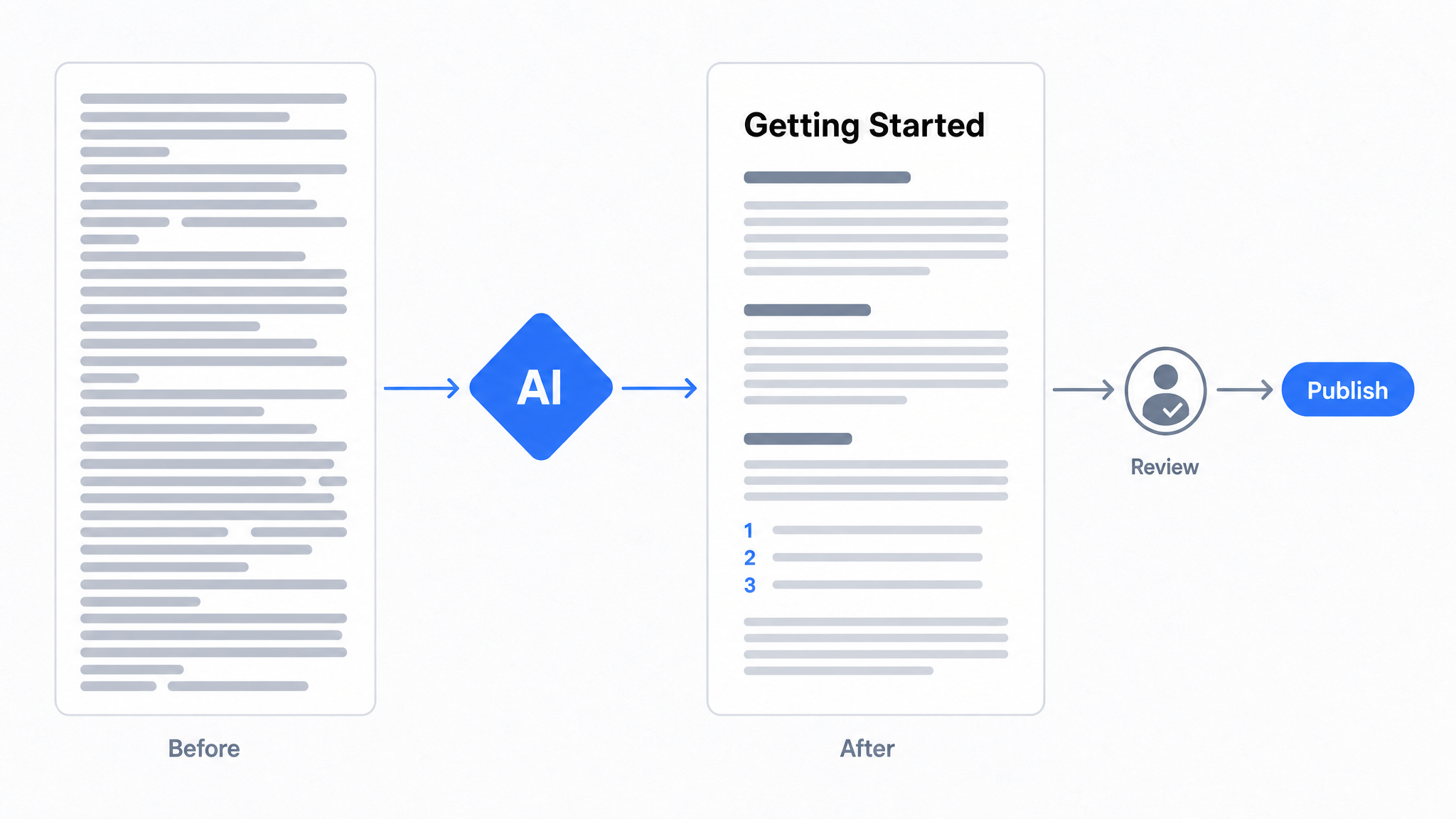
How to Use AI to Improve Existing Documentation
Use AI to audit, rewrite, and translate the documentation you already have, and let a connected agent draft improvements to stale pages for a human to publish.
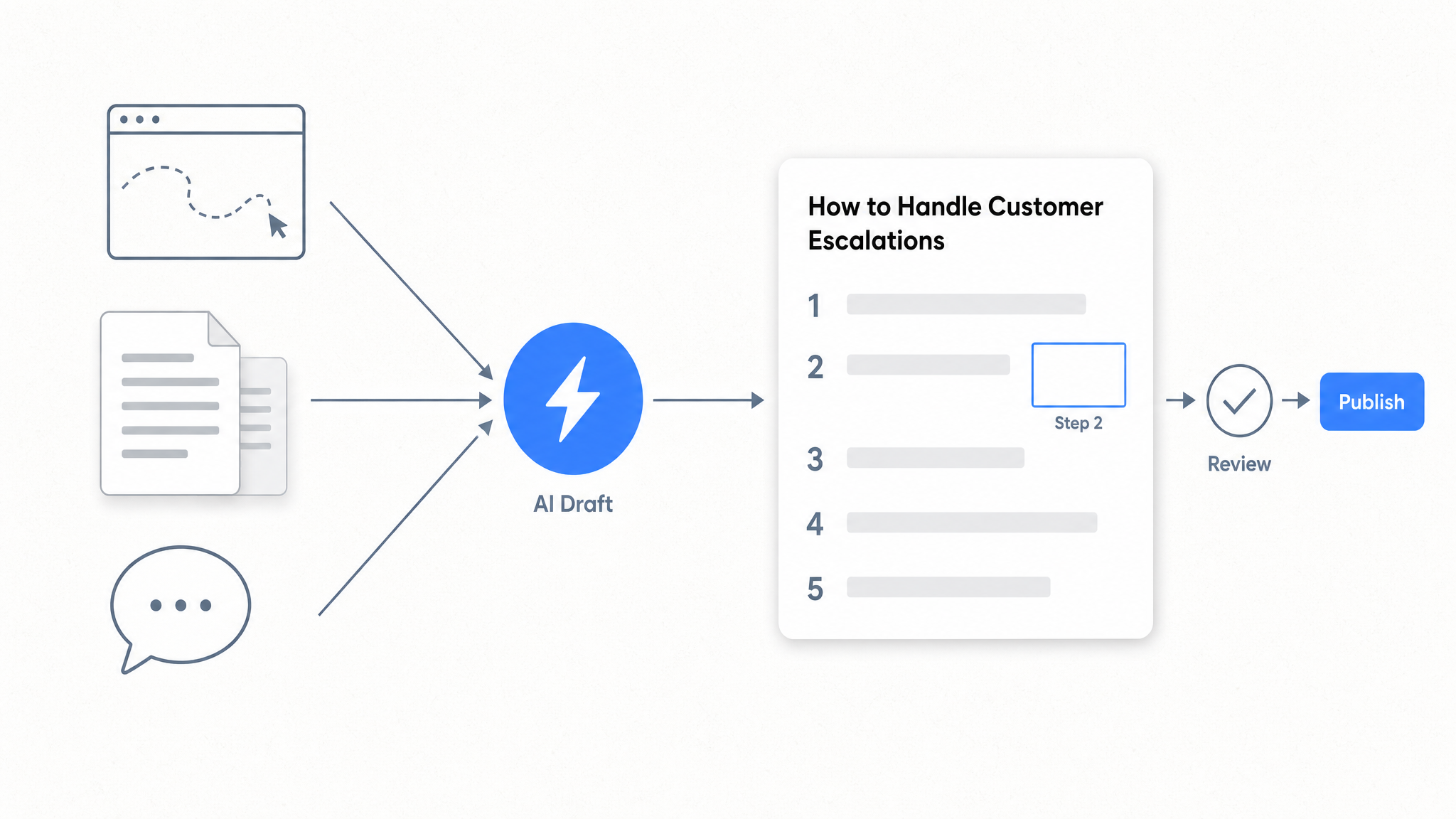
How to Automate SOP Creation with AI
Capture a workflow, let AI draft the SOP, review it, and publish it to a searchable knowledge base your team can query around the clock.
Ready to get started with Dewstack?
Try Dewstack free for 7 days. Create AI-powered documentation that answers questions instantly.
No credit card required.